




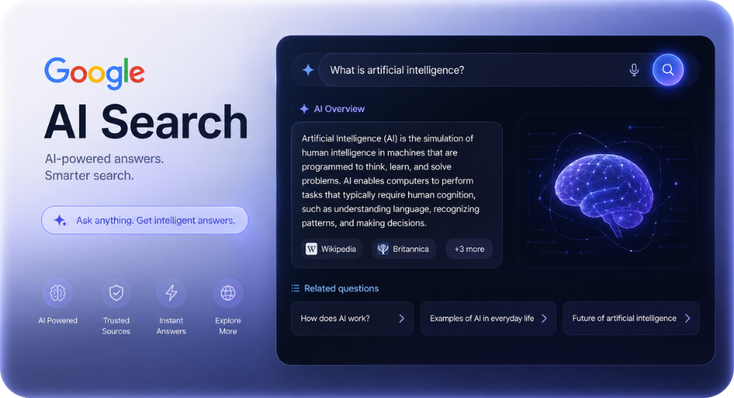
Let’s get the big question out of the way first. There isn’t one magic button that switches Google AI Search off for good. Google has said as much itself. But that doesn’t mean you’re stuck with it, and it definitely doesn’t mean you’re powerless.
Whether you want the AI answers gone, want them switched on, or just want to understand what on earth changed with your search results this year, this guide walks you through all of it. You’ll find nine practical methods that work right now, clear steps for desktop and mobile, and an honest look at when AI search actually earns its place on your screen.
By the end, you’ll know exactly which lever to pull. Let’s dig in.
What Is Google AI Search, Really?
Google AI Search is the umbrella term for the generative features Google has built into its search engine. Instead of handing you ten blue links and wishing you luck, Google now reads across multiple sources and writes you an answer, with citations you can click through.
It runs on Gemini, Google’s family of large language models. And it’s no longer a side experiment. At Google I/O in May 2026, Google confirmed that AI Mode had crossed one billion monthly users and moved from a Search Labs trial into a core part of the product. Roughly half of all Google searches now show some kind of AI summary.
That’s a genuinely huge shift, and it happened fast. If your search results suddenly look different, you’re not imagining things.
The Three Layers of Google AI Search
Here’s where most people get confused. Google AI Search isn’t one feature. It’s three, and each one has its own controls.
- AI Overviews: The summary box that shows up at the top of a normal results page. You don’t ask for it. Google decides when to show it.
- AI Mode: A separate tab, sitting next to All, Images, and Videos. It replaces the results page with a conversational answer you can keep questioning.
- Gemini inside Chrome: AI shortcuts in the address bar, the right-click menu, and the search bar.
Knowing which one is bugging you is half the battle. Turn off the wrong thing and nothing changes.
AI Mode vs AI Overviews: Why the Difference Matters
These two look similar. They both use Gemini, they both cite sources, and they both live inside Google Search. But they behave very differently.
AI Overviews are push. Google serves them automatically when it reckons a summary helps. You never asked, and you can’t request one on demand.
AI Mode is pull. You have to click into it. It’s a destination, not an interruption. Once you’re in, you can ask follow-up questions, and Google remembers the context of your conversation.
Why does this matter so much? Because thousands of people search for “how to disable AI Mode in Google Search” when what’s actually annoying them is AI Overviews. They follow a guide, toggle something off, and the summary box is still sitting there. Frustrating, right? Get the diagnosis right and the fix becomes simple.
Quick Comparison Table
|
Feature |
AI Overviews |
AI Mode |
|
Where it appears |
Top of normal results | Its own tab |
|
Do you choose it? |
No, Google decides |
Yes, you click in |
|
Follow-up questions |
Limited |
Yes, full conversation |
|
Multimodal input |
Some |
Text, voice, image, camera |
|
Official off switch |
No |
Sometimes, via Search Labs |
| Best workaround | Web tab or udm=14 |
Labs opt-out or extension |
The Honest Answer: Can You Switch Google AI Search Off?
Short version: not completely, and not with one click.
Google’s own Search Help documentation is unusually blunt about this. It describes AI Overviews as a core Search feature, sitting in the same category as knowledge panels, and states plainly that core features can’t be turned off. You can read Google’s official position on the AI Overviews help page.
So anyone promising you a single hidden setting is selling something. What you can do is route around it. And honestly, the workarounds are good. A couple of them are so effective you’ll forget AI search exists.
Here’s the practical reality in 2026:
- AI Overviews have no built-in toggle, but three reliable workarounds.
- AI Mode sometimes has a Search Labs toggle, depending on your account and country.
- Since AI Mode graduated out of Labs at I/O 2026, that toggle has vanished for a lot of people.
- Browser extensions and alternative search engines close the remaining gaps.
Now let’s get into the actual methods.
How to Turn Off AI Overview in Google Search
This is the section most people need. Four methods, ordered from easiest to most permanent. Pick the one that suits how you work.
Method 1: Switch to the Web Tab
The fastest fix, and it takes two seconds.
Run your search as normal. When the results load, look at the row of filters under the search bar: All, Images, Videos, News. Click Web. On mobile you may need to tap More to find it.
The page reloads with nothing but classic links. No AI summary, no clutter. The catch is that you’ll need to do it for every new search. Great for occasional use, tedious as a daily habit.
Method 2: Add &udm=14 to the URL
This is the Web tab in URL form. Once your results page loads, click into the address bar, add &udm=14 at the very end, and hit Enter.
So this: https://www.google.com/search?q=your+search
Becomes this: https://www.google.com/search?q=your+search&udm=14
Same result, no clicking around. Still manual though. Which brings us to the version you’ll actually stick with.
Method 3: Make udm=14 Your Default Search
This is the one to set up. Five minutes of effort and every single search you run from then on skips the AI layer automatically. No tabs to click, no URLs to edit.
Chrome, Edge and Brave
- Open Settings, then Search engine, then Manage search engines and site search.
- Next to Site search, click Add.
- Name it something obvious, like “Google No AI”.
- Set the shortcut to g or @web.
- In the URL field, paste: https://www.google.com/search?q=%s&udm=14
- Save it, then click the three dots beside your new entry and choose Make default.
Firefox and Safari
Firefox handles this through the same custom search engine principle, though you’ll need an add-on such as Add Custom Search Engine to set the URL. Safari is more locked down, so on Mac and iPhone the practical route is a content blocker extension or switching your default engine, both covered below.
Worth knowing: this method touches your browser only. It doesn’t change anything on your Google account, and it works whether you’re signed in or not.
Method 4: Try the -ai Search Modifier
A newer trick that’s been working since mid-2026. Simply add -ai to the end of your query.
Search for best hiking boots -ai and the AI Overview drops off the page. It’s quick, it needs no setup, and it works on mobile. The trade-off is that it’s an undocumented behaviour rather than an official feature, so treat it as a handy backup rather than your main plan.
How to Disable AI Mode in Google Search
AI Mode is a different beast, so it needs different tools. Here are five more methods.
Method 5: Opt Out Through Search Labs
If your account still has the toggle, this is the cleanest option because it follows you across every device you’re signed in to.
- Head to labs.google.com and sign in. Make sure you’re not in Incognito.
- Find AI Mode in the list of experiments.
- Switch it off, or click Leave.
Do the same for AI Overviews if you see it listed.
Now, a bit of straight talk. If AI Mode isn’t in your Labs list, that’s not a bug. It means Google has promoted the feature out of the experimental programme and into standard Search for your account. There’s no toggle to find. Skip ahead to Method 7.
Method 6: Turn Off the Chrome Omnibox Entry Point
Chrome quietly added AI Mode shortcuts to the address bar. Here’s how to remove them.
- Type chrome://flags into the address bar and press Enter.
- Search for AI Mode.
- Set the relevant flag to Disabled.
- Click Relaunch.
This clears the omnibox shortcut. It won’t remove the AI Mode tab on the results page, so pair it with Method 5 or Method 7 for full coverage.
Method 7: Hide What You Cannot Switch Off
When Google removes a setting, browser extensions fill the gap. A good search-cleaning extension will hide the AI Mode tab, the AI Overview block, the “keep exploring” prompt and plenty of other clutter.
Most of these tools work across Chrome, Edge, Brave, and other Chromium browsers, and many include separate toggles so you can hide AI features while keeping things like People Also Ask.
One sensible precaution: check the permissions before you install anything. Extensions that can read your search pages have real access, so stick to well-reviewed options with a clear privacy policy.
Method 8: Change Your Search Engine Altogether
If you’d rather not fight the platform, don’t. Several search engines now compete specifically on giving you a genuine AI-off setting.
- DuckDuckGo offers a straightforward toggle to disable AI-assisted answers.
- Ecosia and Qwant keep AI features optional rather than default.
- Stripped-back engines built purely around traditional link results are also gaining ground.
Changing your default engine is a two-minute job in any browser, and you can always keep Google a keyboard shortcut away for the searches where you want it.
Disabling AI Mode on Android and iPhone
Mobile needs a slightly different approach, since the Google app and the browser are separate surfaces.
On Android:
- In Chrome, disable the AI Mode flag as described in Method 6.
- Sign in to labs.google.com and opt out if the toggle appears.
- To stop Gemini answering your assistant gestures, open Settings, then Apps, then Default apps, then Digital assistant app, and change it.
On iPhone:
- Open Chrome, tap the three-dot menu, then Settings.
- Tap Sync and Google services and look for search assistance or Gemini options.
- In Safari, a content blocker extension is the most reliable route.
How to Turn On AI Top Compiled Answers on Google
Plenty of people want the opposite. They’ve heard about compiled AI answers, they can’t see them, and they’d like to switch them on. Fair enough, so let’s cover that too.
Method 9: Switch AI Mode and AI Overviews Back On
If you turned something off earlier, retrace your steps: undo the default search engine change, re-enable the Chrome flag, or disable your extension.
If you’ve never seen AI answers at all, try this:
- Sign in to your Google account. Signed-out searches often get a reduced feature set.
- Visit labs.google.com and opt in to any AI experiments available in your region.
- Turn Incognito off, since AI features generally don’t run in private windows.
- Update your Google app or browser to the current version.
- Check availability. AI Mode now covers nearly 200 countries and dozens of languages, but some advanced features roll out to certain markets and paid tiers first.
Still nothing? Availability really does vary by country, language, and account type. Give it time, because Google’s rollout schedule moves quickly.
Getting Better Compiled Answers
Once AI answers are on, how you ask makes a real difference. A few habits that pay off:
- Ask full questions. “What’s the difference between a fixed and variable home loan in Australia” beats “home loan types”.
- Stack your conditions. AI Mode handles multi-part questions well, so include your budget, location and constraints in one go.
- Use follow-ups. The conversation keeps context, so you don’t need to repeat yourself.
- Click the citations. The links are the point. Use the summary as a map, not a destination.
How Can AI Mode or AI Search Help Me?
Here’s the thing most “turn it off” guides skip. AI Mode is genuinely excellent at some tasks and genuinely poor at others. Knowing the difference saves you time either way.
Where AI Mode Genuinely Wins
AI Mode breaks your question into sub-questions, searches each one at the same time, then pulls the findings into a single answer. Google calls this query fan-out. It shines when:
- Your question has several parts. Comparing three products across price, warranty, and availability would normally mean six tabs. Now it’s one query.
- You’re researching an unfamiliar topic. It gives you the landscape and the vocabulary fast, so your next searches are sharper.
- You half-remember something. Vague queries that keyword search would choke on, like describing a film you can’t name, often work beautifully.
- You need a comparison. Synthesising pros and cons across sources is exactly what it’s built for.
- You want to use an image or your voice. Multimodal input means you can point your camera at something and ask about it.
Where Classic Search Still Beats AI
Let’s be balanced about this. Reach for a normal search when:
- You need a specific website. If you know where you’re going, links are faster.
- The information is time-sensitive. Breaking news, live prices, and sports scores are better served by primary sources.
- Accuracy is critical. Generative summaries can get things wrong. A German court ruling in June 2026 found Google directly liable for false claims in AI Overviews, which tells you the accuracy question is a live one. For medical, legal, or financial decisions, go to the source.
- You’re buying something local. Local and transactional searches are still largely link-driven.
A Simple Thumb Rule
Use AI Mode when you’re exploring. Use classic search when you’re retrieving.
If you’re trying to understand a topic, compare options or get oriented, let the AI do the heavy lifting. If you know what you want and just need to find it, ten blue links will get you there quicker. Both tools, one search bar. That’s not a bad deal.
What Google AI Search Means for Your Website
If you run a website, this shift changes your traffic maths. Some studies through 2024 to 2026 have reported organic click-through rate drops in the range of 20 to 40 percent for pages competing against AI Overviews. Above-the-fold space has shrunk, and a strong ranking doesn’t guarantee visibility the way it used to.
That sounds gloomy. It isn’t, provided you adapt.
What Still Works
Google’s own guidance for site owners is refreshingly clear on this point. There are no special technical requirements for appearing in AI features. To be cited, a page simply needs to be indexed and eligible to show in Search with a snippet. You can read the full guidance in Google’s AI features documentation for Search Central.
In practice, that means the fundamentals still carry the load:
- Clean crawling and indexing, with nothing blocked in robots.txt or by your CDN
- Fast, mobile-friendly pages
- Sensible internal linking so your content is findable
- Helpful, people-first content written by someone who knows the subject
What Needs to Change
The bigger adjustment is in how you write.
- Answer the question in the first two sentences. Fan-out retrieval favors content that gets to the point. Long windups get skipped.
- Structure for extraction. Clear headings, short paragraphs, tables and lists all make your content easier to lift and cite.
- Cover topics properly. One thorough page usually outperforms five thin ones on the same theme.
- Build genuine expertise signals. Named authors, real credentials, original data, and first-hand experience are what separate a cited source from an ignored one.
- Track citations, not just clicks. Being named in an AI answer builds awareness even when nobody clicks. Your reporting should reflect that.
The sites doing well right now are the ones treating AI search as a new distribution channel rather than a threat to be blocked.
Frequently Asked Questions
Can I permanently turn off Google AI Overviews?
Not through a Google setting. Google classes AI Overviews as a core search feature that can’t be disabled. The closest thing to a permanent fix is setting a custom default search engine using the udm=14 parameter, which strips AI results from every search automatically.
Is AI Mode the same thing as AI Overviews?
No. AI Overviews are summary boxes that appear automatically above your normal results. AI Mode is a separate tab you choose to open, offering a full conversational experience with follow-up questions. They use different controls, so the fix depends on which one you mean.
Does turning off AI Mode affect my Google account?
It depends on the method. The Search Labs opt-out is account-level, so it applies on every device where you’re signed in. The udm=14 and Chrome flags methods only change browser behaviour and leave your account untouched.
Does the udm=14 method work on mobile?
Yes. On Android you can add a custom search engine in Chrome exactly as you would on desktop. On iPhone the options are more limited, so the Web tab or a content blocker tends to be the practical choice.
Is Google AI Mode free to use?
The core AI Mode tab is free for all Google users across nearly 200 countries. Some advanced capabilities, such as agentic research tools, launch first for paid Google AI subscription tiers and in selected markets.
How do I turn AI compiled answers back on?
Undo whatever you switched off, then sign in to your Google account, visit labs.google.com to opt in to available AI experiments, and make sure Incognito is turned off. Availability still varies by country and language.
Will disabling AI features make my searches slower?
No. If anything, classic link results usually load faster, since Google isn’t generating a summary before showing you the page.
Should I block Google’s AI from using my website content?
For most businesses, no. Blocking AI crawlers typically removes you from AI answers without recovering the lost clicks, so you lose the visibility without the upside. A stronger play is optimized to be cited well.
Conclusion: The Choice Is Still Yours
Google AI Search isn’t going anywhere. It’s the default interface for finding things now, and the sooner that’s accepted, the sooner you can work with it rather than against it.
But default doesn’t mean compulsory. Between the Web tab, the udm=14 parameter, Search Labs, browser extensions, and alternative search engines, you’ve got nine solid ways to shape your own search experience. Switch AI off when it’s in the way. Switch it on when it does the job better. That flexibility is worth more than any single setting.
Need help making your website visible in AI search results? Our SEO team works with businesses adapting their content strategy for AI Overviews and AI Mode. Get in touch and we’ll show you where you stand.